How to accept a booking enquiry
Goal
As a supplier user, I want to accept a new booking enquiry for any service type (Service, Repair, Tyre, Glass, MOT, Supplementary, or Diagnosis) so the vehicle can be scheduled on the date requested by the customer.
Related Articles
- Add a Booking Enquiry (link when published)
- How to Add Job Items (link when published)
Navigate to Enquiry Search
- From the left navigation menu, Select
Enquiry

- Alternatively, on the dashboard click
View Allon theNEWtile - The
NEWtile count shows all enquiries that are new (black) - The orange count shows enquiries in
Newstatus that no supplier user has opened yet

Open the Enquiry Details
- In the search results, locate the vehicle row with a
Newstatus label - Click the
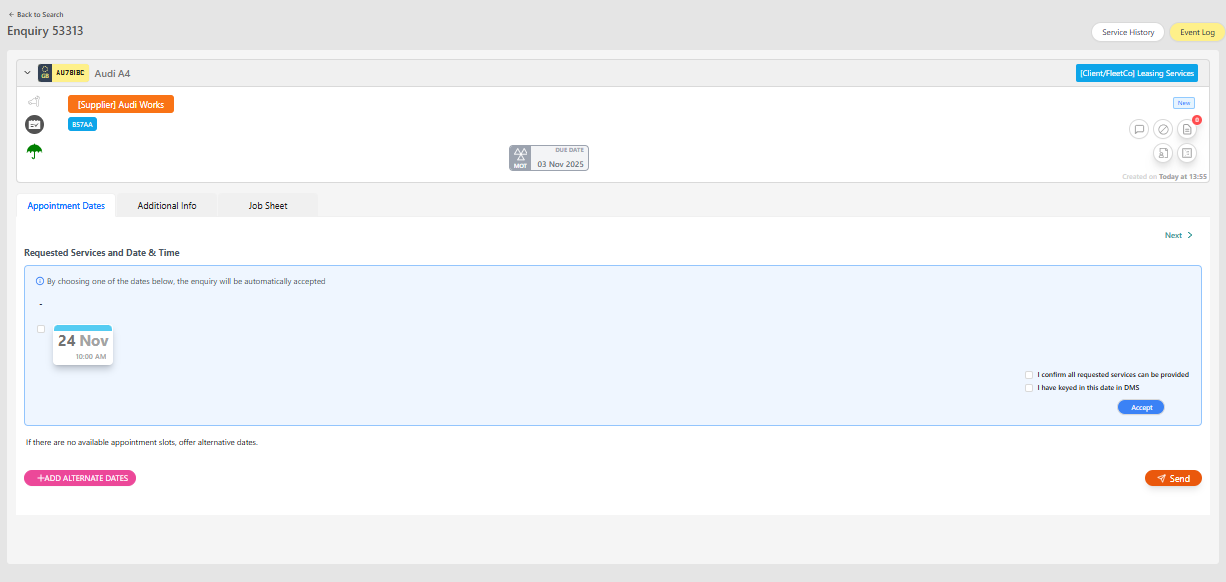
>icon (View Enquiry) to open the Enquiry xxxxx page - Confirm the correct vehicle and lease company are displayed

Review the Appointment Dates tab
- The page displays tabs for
Appointment Dates,Additional Info, andJob Sheet Appointment Datesis highlighted by default for a new enquiry- Review the service request to ensure the date aligns with workshop capacity
Review Additional Info and Job Sheet tabs
- Click
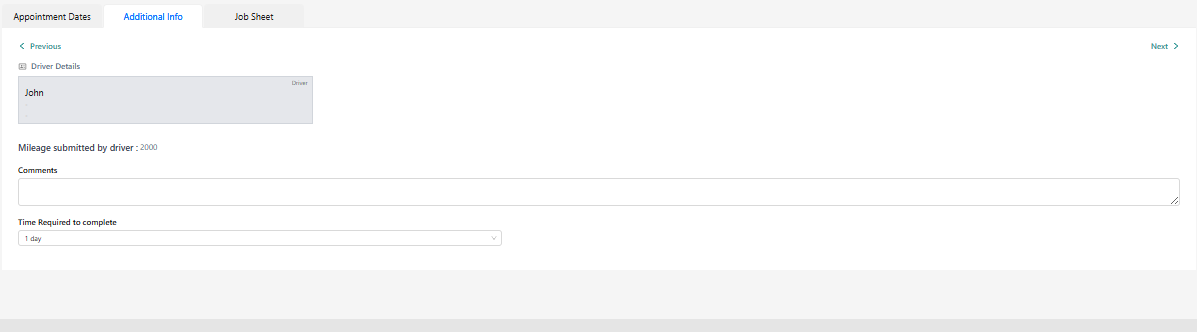
Additional Infoto view driver details, mileage submitted by the driver, comments, and the time required to complete the work. Capture any clarifications from the requester in the comments field if needed.
- Move to the
Job Sheettab to review or add workshop preparation notes such as mileage. This tab is also where the Add Job Item button can be clicked after acceptance to start planning the work.

Confirm Appointment
- Click
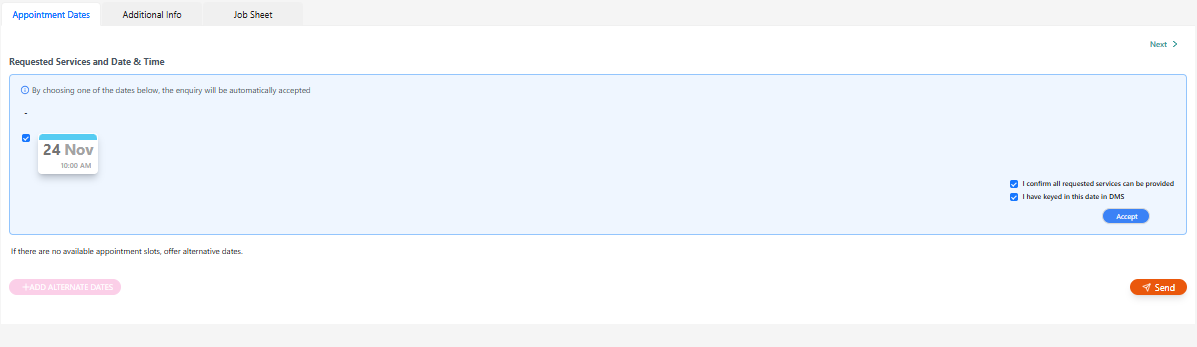
Appointment Datestab - Select the checkbox beside the preferred appointment date to accept it
- In the confirmation panel on the right, tick both checkboxes:
I confirm all requested services can be providedI have keyed in this data in DMS
Accept the enquiry
- Click Accept
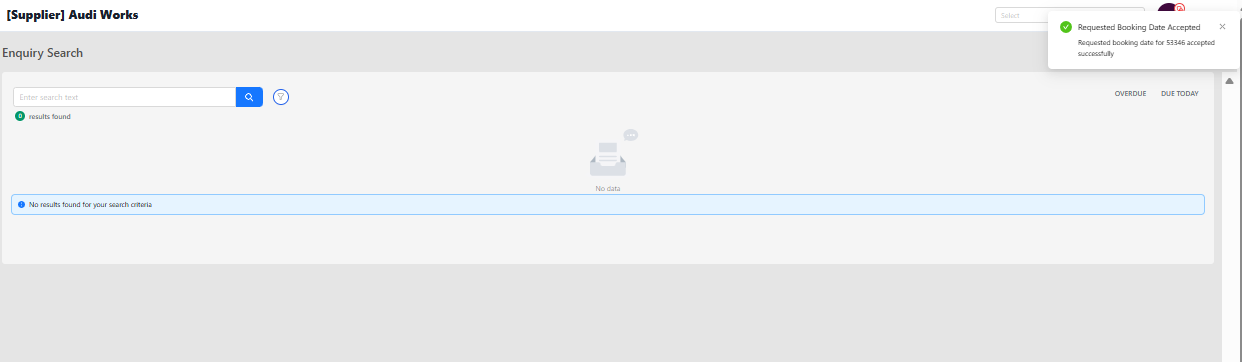
- A toast message appears in the top-right corner: “Requested Booking Date Accepted – Requested booking date for xxxx accepted successfully”
Automatic navigation
After the toast message, the system navigates back to the Vehicle Enquiry Search page with the previous filters applied.
Verify dashboard counters
- Click
Dashboardon the left navigation bar - Confirm the
NEWtile count decreased by 1 - Confirm the
ACCEPTEDtile count increased by 1

- Confirm the
READY TO CREATE JOBSHEETtile count in the WORK IN PROGRESS section also increased by 1

Review accepted enquiries
- Click
View Allon theACCEPTEDtile - The Enquiry Search screen opens with the
Acceptedfilter applied - The accepted enquiry now shows an
Acceptedstatus label in the results

What Happens Next
- Status Update: Enquiry transitions from
NewtoAccepted - Counter Updates: The
READY TO CREATE JOBSHEETtile counter in the WORK IN PROGRESS section is updated similar to theAcceptedtile counter - Notifications: Customers receive status notifications (if configured)
- Scheduling: The vehicle is expected to arrive per the accepted appointment date
Next Steps
- Prepare job sheets for the scheduled date
- Communicate arrival instructions to the driver if necessary
- Monitor for customer updates or reschedule requests
Troubleshooting
Accept button disabled
Problem: Accept button remains inactive.
Solutions:
- Ensure at least one appointment date checkbox is selected
- Confirm both right-hand confirmation checkboxes are ticked
- Refresh the page if the UI appears out of sync
Toast confirmation not received
Problem: No toast message appears after clicking Accept.
Solutions:
- Review dashboard counts to confirm acceptance was recorded
- Re-open the enquiry to verify if status already changed
- Contact support if the status remains
New
Counters did not update
Problem: Dashboard counts stay the same after acceptance.
Solutions:
- Refresh the dashboard page
- Re-open the enquiry list to ensure status changed
- If the counts remain unchanged, raise the issue with support, providing enquiry ID and timestamp
Related Tasks
- Add Job Lines: Create job lines for specific services once the booking is accepted
- Update Enquiry Status: Move from
AcceptedtoVehicle On Sitewhen the vehicle arrives - Communicate with Customer: Send reminders or instructions before the appointment
- Manage Reschedules: If the customer requests a new date, update the enquiry accordingly
Status: Draft
Category: Protected
Authored By: Arun Kumar on November 19, 2025
Revisions